

The minimum you need to know
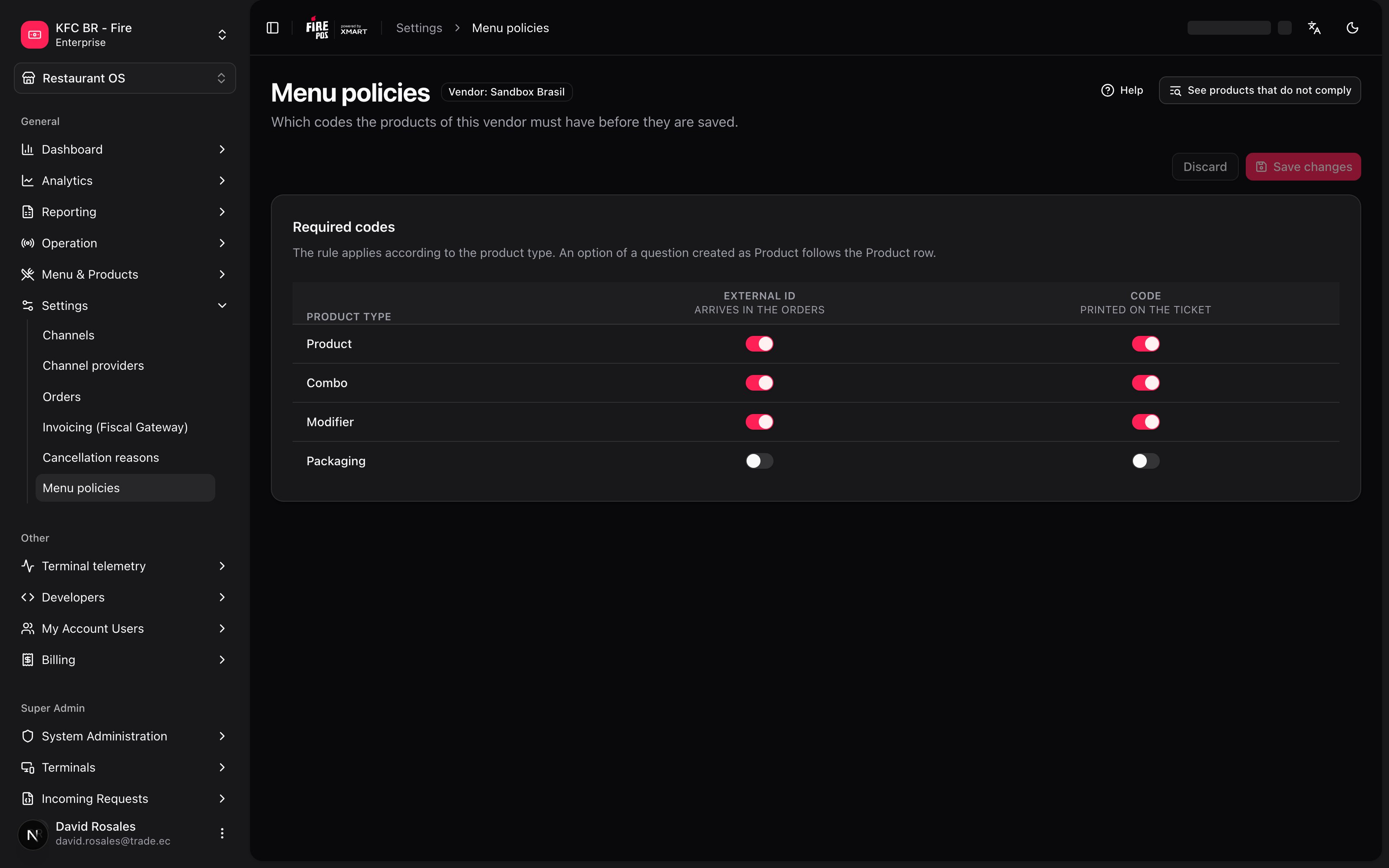
1. It comes switched off. Until someone configures it, nothing changes: no product is required to have any code, and none is flagged.2. It’s a matrix, and it’s per vendor. The rows are the product types — Product, Combo, Modifier, Packaging — and the columns are the two codes, External ID and Code. Each cell is a switch: on, the code is required for that type; off, it isn’t.3. It blocks what’s new and flags what already exists. Creating a product or saving its record without a required code is refused. Products that already lack the code are not blocked: they keep selling and publishing, and they get a Missing code chip so you can fix them.
The screen
At the top, next to the title, the Vendor badge tells you which vendor you’re configuring — here, Sandbox Brasil. It’s the vendor chosen in the selector at the top of the backoffice, and the policy belongs to that vendor alone. The description reads “Which codes the products of this vendor must have before they are saved.” On the right, Help opens a side panel that explains the screen, and See products that do not comply opens the product list already filtered. That button only appears once the policy you saved requires some code. The Required codes card holds the matrix. Its note says: “The rule applies according to the product type. An option of a question created as Product follows the Product row.”
You change switches and then confirm with Save changes. Discard drops what you changed. When it saves, Fire confirms with a generic message; if it can’t, it shows the server’s message as it comes, in English.
To see Menu policies your role needs access to it — if your role is set up with explicit submenus, an administrator has to grant it. Without it, the item doesn’t appear in the menu and opening the address sends you to access denied. To save, access isn’t enough: you also need permission over the whole vendor. Someone limited to one store can read the policy but can’t change it.
The simple path
Almost every account needs one column: External ID, for the types it sells.- Open Restaurant OS → Settings → Menu policies and check the Vendor badge.
- In the External ID column, switch on Product. Do the same for Combo and Modifier if they also travel in orders.
- Tap Save changes.
- Tap See products that do not comply and work through the list.
The two codes are not the same
What the policy does, and what it doesn’t
Which field gets the asterisk
Without a policy, External ID and Code carry no asterisk. With one, a field gets the asterisk only if the vendor requires that code for that product type. In the capture of the product record, a Product shows both asterisks because, in that environment, the policy requires both codes for Product. With a Fulfillment type selected on the record, the codes are inherited and locked, so they show no asterisk.What it blocks
Fire refuses in these cases, and only when the product’s type requires a code it doesn’t have:
A code that only has spaces counts as empty. Otherwise the tabs — pricing, categories, images, modifier groups, suggestions and availability — save normally, whether or not the product has its code. Prices, categories and menus don’t wait for the code.
Tapping the Modifier / Product / Combo pills on the record doesn’t trigger anything: it only changes the screen and marks the record Unsaved. The asterisks switch to those of the new type right away, but the check happens when you save. Packaging has no pills (its type can’t be changed), but its row applies when creating and when saving General.
How you see it:
- Saving General marks the empty field in red with Required by the vendor menu policy, and a message with the same reason appears too.
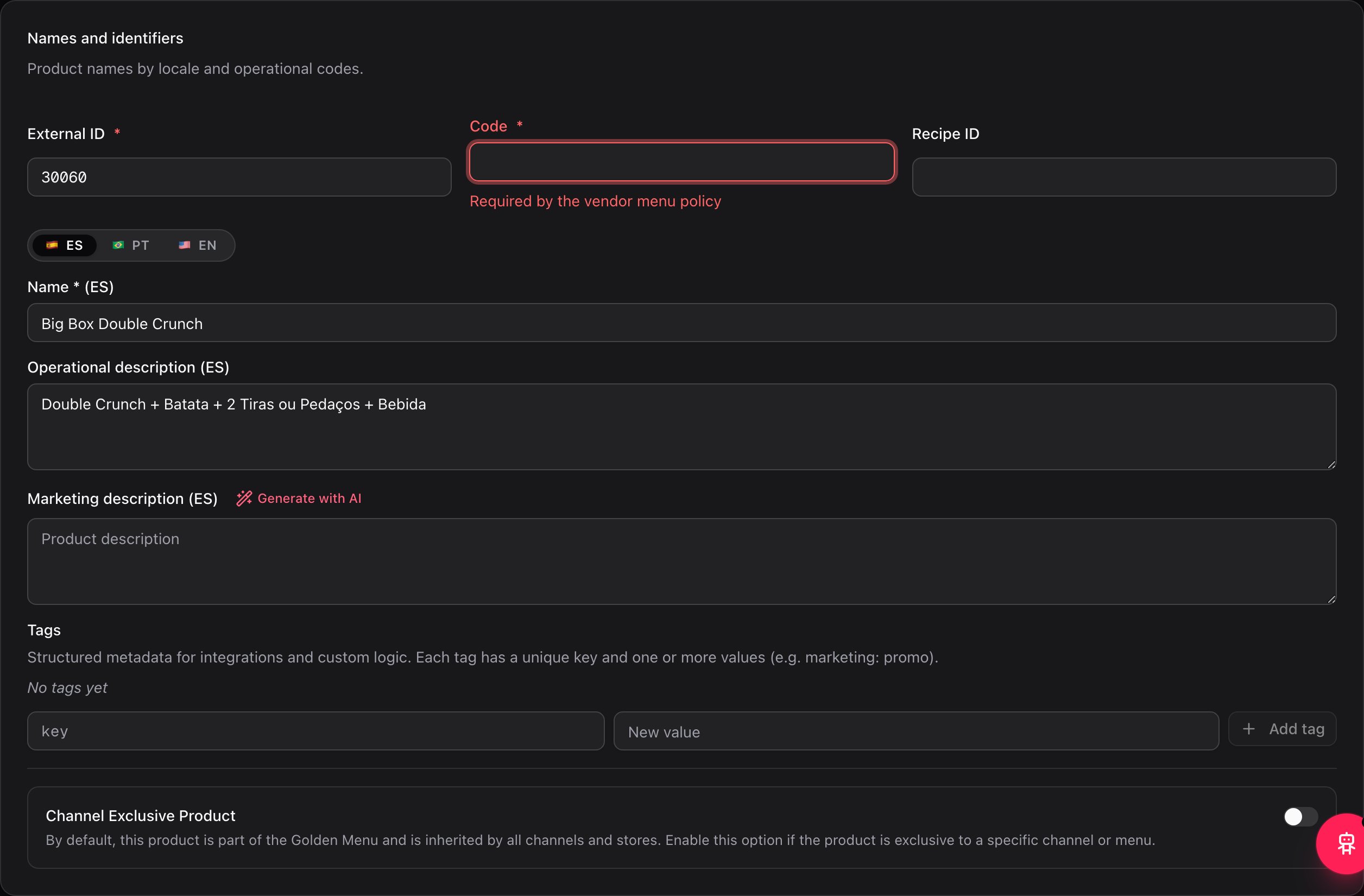
- Creating a product marks every missing field the same way.
- Add option marks the fields inside the dialog — no message outside it — and keeps you on the General tab of the dialog.
- Saving another tab with a type change pending shows the message “The vendor menu policy requires for .”, with the hint “Fill it in on the General tab.” and a Go to General button.
What it only flags
Products that already existed without the code are not blocked. They keep selling and publishing, and menu synchronization doesn’t look at the policy. They’re marked in two places:- In the product list, a Missing code chip next to the name. Hover it and the tooltip says what’s missing: Missing: Code, Missing: External ID or Missing: External ID and Code. The list also gets a filter, Any code status, with a single option, Missing code. It only appears when the policy requires something, and Clear filters shows up while any filter is active.
- In the product record, a notice above the tabs, visible on every tab: “This product has no . The vendor policy requires it for ; orders that include it arrive without that code.” It reads the saved data: it stays while you type and goes away when you save. It doesn’t show when creating. With a type change pending, it already uses the new type.
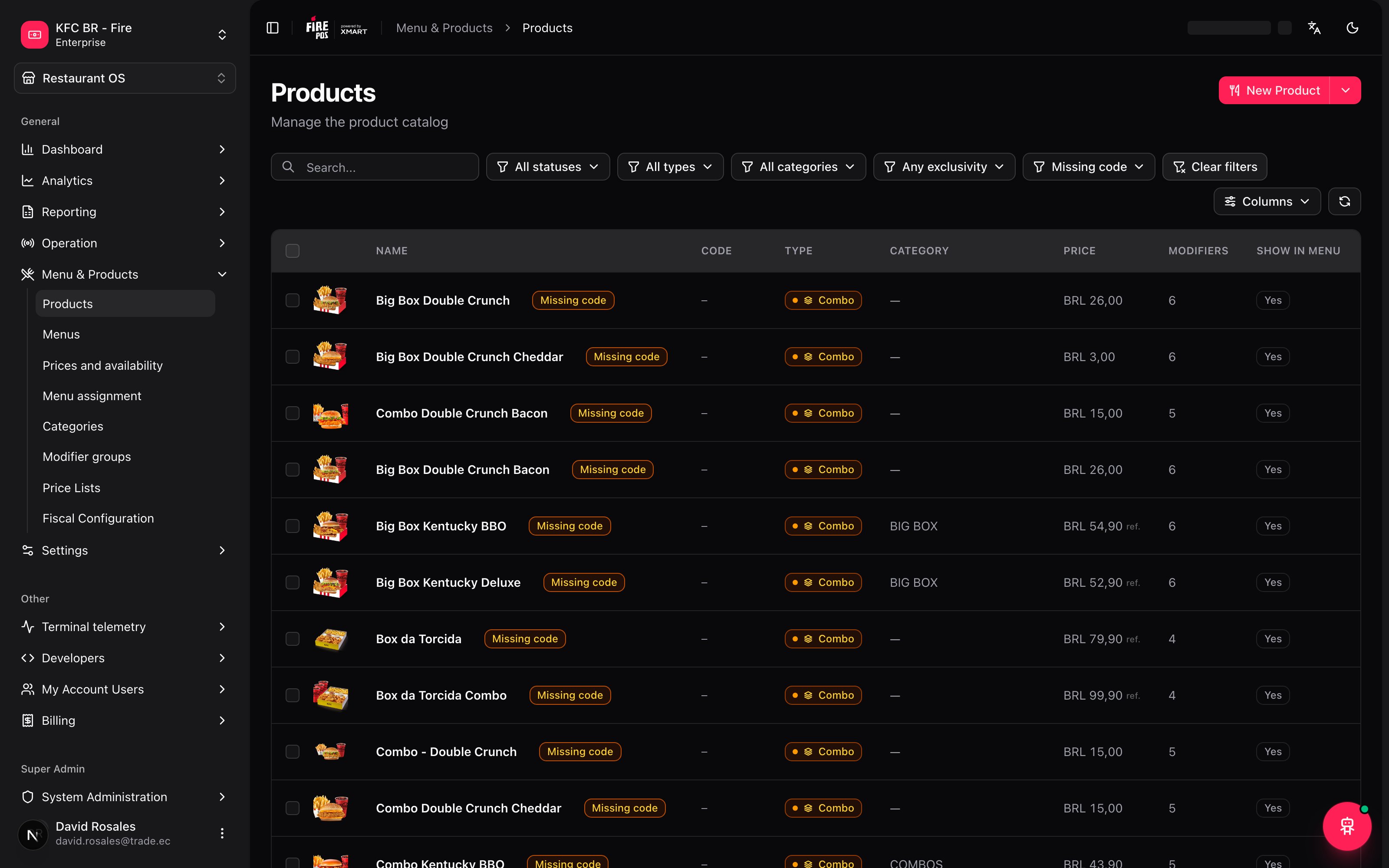
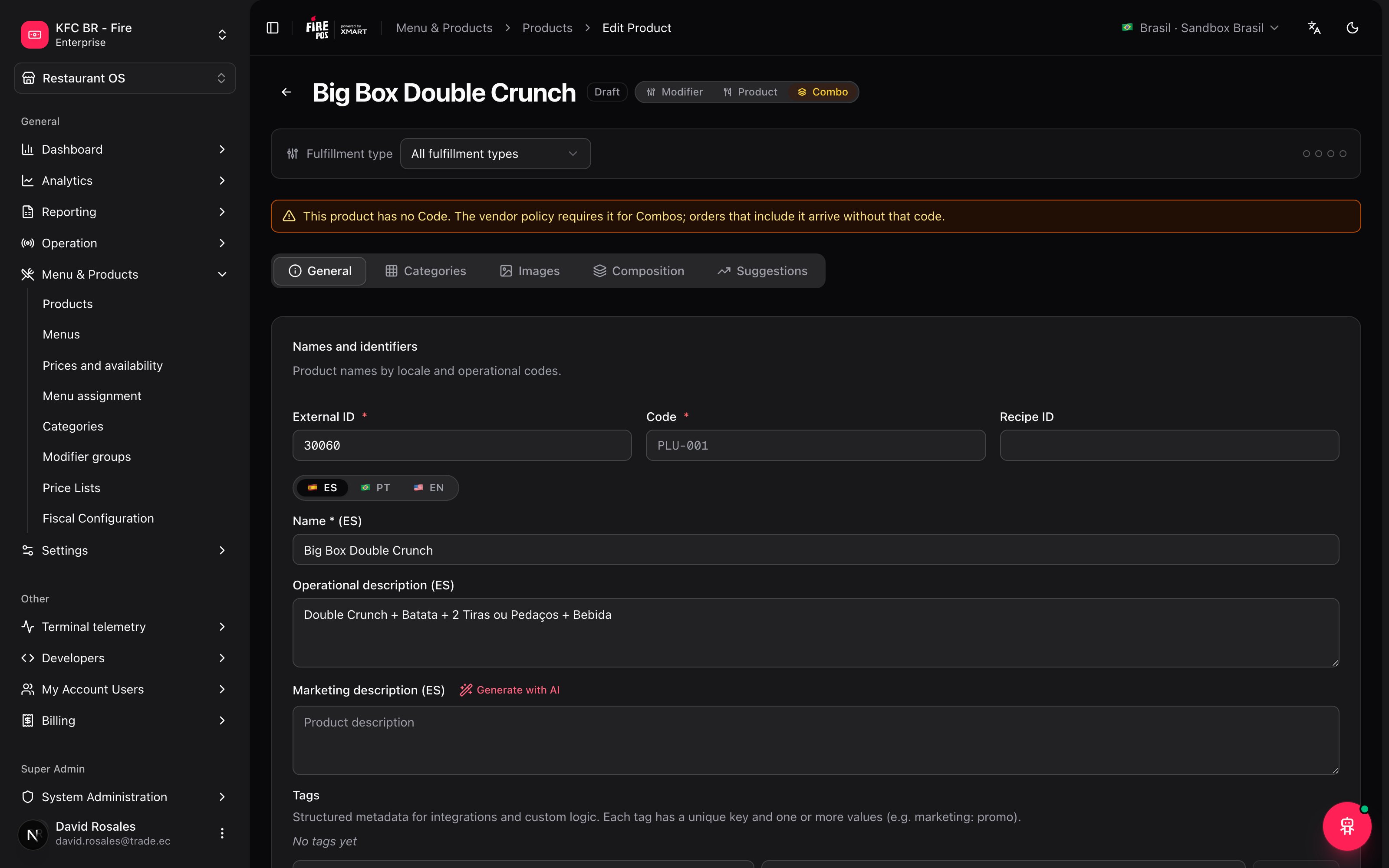
Why it doesn’t block the old ones. Turning the policy on can’t take products off sale: a restaurant in the middle of service would lose dishes. The cost of leaving it like that is real, though — those products’ orders keep arriving without a code until someone fixes them. The chip and the notice are what keep that visible.
What it doesn’t cover
- Modifier groups. A group is created without a code and that’s fine: it has no row in the matrix. The policy covers the options (which are products), not the group.
- Assigning an existing product as an option. With Search and assign product nothing is validated, so a product that doesn’t comply gets assigned without a warning. The rule applies when a product is written, not when it’s assigned.
- Restoring a backup. It doesn’t skip anything: see Import and export.
Recipes: how the real cases get solved
Orders are arriving at X-MART with lines without a code
Orders are arriving at X-MART with lines without a code
- Open Menu policies and switch on External ID for Product (and Combo or Modifier if they also appear in orders).
- Tap Save changes.
- Tap See products that do not comply.
- Open each product and fill the External ID in General.
- Save and sync the menus that hold them from Menu assignment.
I can't save Pricing, Categories or another tab
I can't save Pricing, Categories or another tab
Check whether you touched the Modifier / Product / Combo pills without saving. The record still carries that type change and the policy of the new type is checked on every save. Fill the code on General — the Go to General button takes you there — or undo the type change.
A product shows Missing code but it's selling fine
A product shows Missing code but it's selling fine
It’s expected. The policy doesn’t block products that already existed. The chip tells you its orders arrive without that code: fill it and the chip goes away.
I need the PLU on every ticket
I need the PLU on every ticket
Switch on Code for the types that print. Code is what the ticket prints, so require it only where a ticket needs it.
Find all the products I need to fix
Find all the products I need to fix
On the product list, open the Any code status filter and pick Missing code. Or tap See products that do not comply from Menu policies: it opens the list already filtered.
Cases, end to end
With External ID switched on for Product and Code switched off:Errors that cost money
Glossary
Frequently asked questions
Is the policy on by default?
Is the policy on by default?
No. It comes switched off: nothing is required and nothing is flagged until someone configures it. A vendor with every switch off is the same as one that was never configured.
Does it apply to products that already exist?
Does it apply to products that already exist?
It doesn’t block them, but it flags them. They keep selling and publishing, with a Missing code chip in the list and a notice in the record. They’re refused only when someone saves their General tab or, with a type change pending, any tab.
Does it also apply to the modifier group's ID?
Does it also apply to the modifier group's ID?
No. A group is created without a code and it isn’t in the matrix. The policy applies to the products behind its options.
Does it apply if I load products by spreadsheet?
Does it apply if I load products by spreadsheet?
Yes, for rows that create a product or empty a code it had: they’re left out with a finding. A backup restore doesn’t skip anything, it only warns. See Import and export.
Why can I see it but not save?
Why can I see it but not save?
Saving needs permission over the whole vendor, not just access to the screen. If you only manage some stores, ask someone with permission over the whole vendor.
Why don't I see the Any code status filter?
Why don't I see the Any code status filter?
It only appears when the policy requires some code. With everything switched off there’s nothing to filter.
If you manage several accounts
The same configuration is also available from administration: Super Admin → System Administration → Accounts → the account’s detail → Menu policies tab. It’s the same matrix, but it shows all the countries and vendors of the account at once: a card per country, and in it each vendor with its own Required codes. A single Save changes saves them all, and Cancel drops what you changed. Unlike Restaurant OS, it doesn’t depend on the menu access of your role: it’s for platform superadministrators.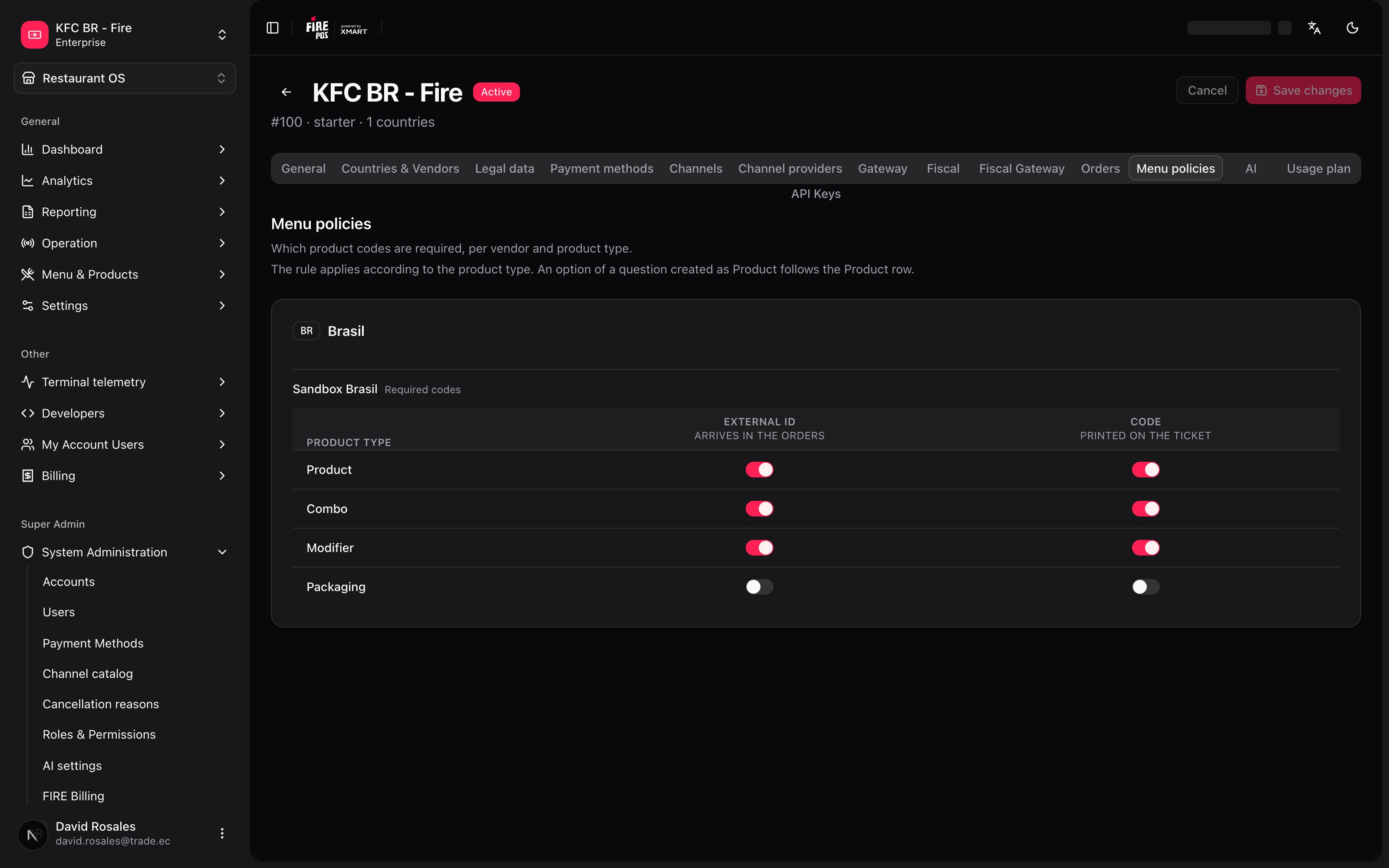
What it does not do
- It doesn’t fill codes in or take products off sale: it blocks what’s new and flags what already exists.
- It doesn’t validate the other tabs of the product while the type hasn’t changed: pricing, categories, images, modifier groups, suggestions and availability save normally.
- It doesn’t require a code on the modifier group itself, and it doesn’t check a product you assign to a group as an option.
- It doesn’t skip anything when restoring a backup: it only warns.