

/kds/admin/account-settings) in the backoffice. Store admins also see the same settings in fire-kds → Settings → KDS account.
The minimum you need to know
- Saving here changes every store of the account within a few seconds. There is no per-store override (except combo grouping on one station, set by support).
- Hierarchy bump is on by default: a downstream bump (Assembly, Dispatch) also clears the ticket from the stations before it.
- The cancellation reason lists only filter what operators can pick. Cancelling still has to be enabled per store and per screen.
The simple path
Most accounts keep the defaults and only set the Fire Agent link.1
Open Account settings
In the backoffice, go to KDS → Account settings.
2
Review Hierarchy bump
Leave Downstream bump closes upstream stations on unless your kitchen needs Dispatch to wait for Assembly.
3
Paste the Fire Agent download link
Under Fire Agent download, paste the installer link in Download URL (http or https). Leave it empty to hide the button.
4
Save changes
Click Save changes. The bar at the bottom tells you when there are unsaved changes; Discard goes back to what is saved.
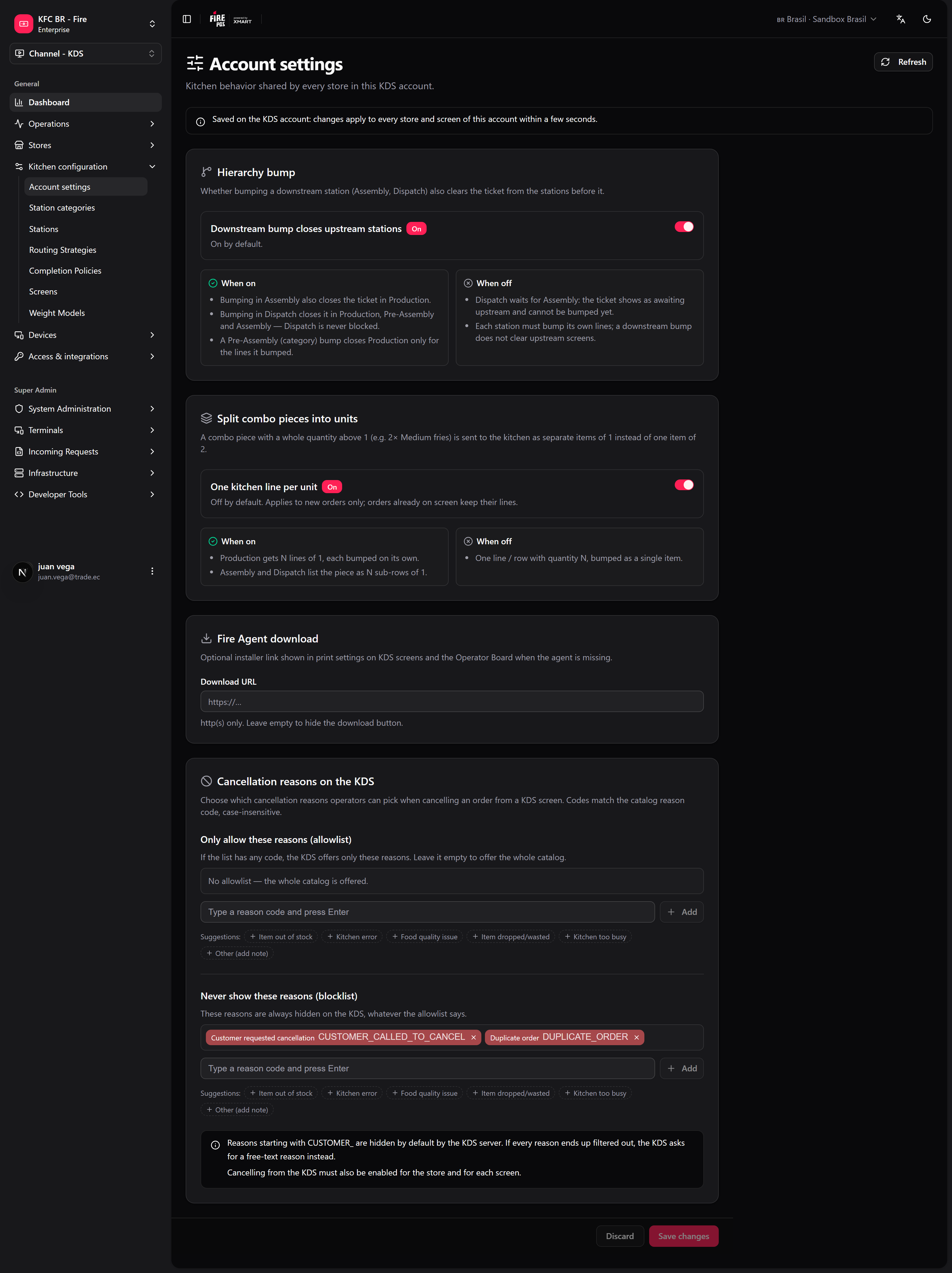
Hierarchy bump
Decides whether a station later in the flow can close a ticket that an earlier station has not bumped.
The order and its webhooks do not change: what changes is which screens still show the ticket.
Split combo pieces into units
A combo piece with a whole quantity above 1 (for example, 2× Medium fries) can reach the kitchen as two items of 1 instead of one item of 2.
Only new orders change. Orders already on screen keep their lines.
Group combo pieces on pre-assembly
On a pre-assembly station, the pieces of a combo are shown under the combo name (1 Big Box, with its pieces as blue sub-lines) instead of as loose lines. It is on by default.
This one is set in fire-kds → Settings → KDS account (Group combo pieces on pre-assembly). Turn it off and pre-assembly lists pieces loose, like production.
Cancellation reasons on the KDS
When an operator cancels from a kitchen screen, they pick a reason from the Fire cancellation catalog. Here you narrow that list:- Only allow these reasons (allowlist) — if it has any code, the KDS offers only those. Empty = the whole catalog.
- Never show these reasons (blocklist) — always hidden, whatever the allowlist says.
_ . : -, for example KITCHEN_ERROR) and press Enter, or pick one of the suggestions. A code cannot be in both lists.
Codes that start with
CUSTOMER_ are hidden by default by the KDS: a cook should not cancel on the customer’s behalf. If every reason ends up filtered out, the KDS asks for a free-text reason instead.Fire Agent download
Download URL is the link to the Fire Agent installer your team uses. When it is set, the print settings on KDS screens and the Operator board show a Download Fire Agent button, so whoever sets up a new PC or tablet installs the right version without asking for the file.Recipes
Dispatch must not close an order Assembly has not finished
Dispatch must not close an order Assembly has not finished
- Open KDS → Account settings.
- Turn off Downstream bump closes upstream stations.
- Save changes.
- Test: an order that Assembly has not bumped shows awaiting upstream on Dispatch.
Each fries portion must be bumped separately
Each fries portion must be bumped separately
- Turn on One kitchen line per unit under Split combo pieces into units.
- Save changes.
- Send a new combo with 2× fries: Production shows two lines of 1.
Cooks should only cancel for kitchen reasons
Cooks should only cancel for kitchen reasons
- In Only allow these reasons, add
ITEM_OUT_OF_STOCK,KITCHEN_ERRORandKITCHEN_TOO_BUSY(use the codes of your catalog). - Save changes.
- Check that cancellation is enabled for the store and the screen (Peripherals, printing and validation).
A new store needs Fire Agent
A new store needs Fire Agent
- Paste the installer link in Download URL once.
- On the new device, open the printer settings on the KDS screen and tap Download Fire Agent.
- Follow Fire Agent installation or Android.
Worked example
A Combo with 2× Medium fries, in a kitchen with Production, Assembly and Dispatch:Errors that cost money
Glossary
FAQ
Can one store use a different rule?
Can one store use a different rule?
No. These settings are per account. Store-level behaviour (display, printing, waitlist, cancellation on/off) lives in each store’s settings.
How long until the screens pick up the change?
How long until the screens pick up the change?
A few seconds. Screens do not need to be reloaded.
Does hierarchy bump change the order status sent to integrations?
Does hierarchy bump change the order status sent to integrations?
No. It only changes which kitchen screens still show the ticket.
What this page does not do
- It does not turn cancellation on: that is per store and per screen.
- It does not install Fire Agent: it only shows the link.
- It does not change orders already on screen.