

The minimum you need to know
- Two levels. The store holds what all its registers share: server, store code, CNPJ and supervisor password. Each register also needs its own SiTef terminal.
- One register, one terminal; one terminal, one register. Fire does not let you link the same terminal to two registers, or two terminals to the same register.
- Without a linked terminal, the register cannot take card or PIX payments. Nor can it if the store’s SiTef is turned off. Changes reach the POS on their own: the next card sale already uses them.
Prerequisites
- A store in Brazil. In stores from other countries the SiTef cards do not appear.
- The register registered in Fire. See Linking.
- The data SiTef provides: the store code (“Empresa”), the IP of the SiTef server, and one terminal code per register.
1. Enter the store’s SiTef data
In Fire POS → Store config, with the store selected in the header, find the SiTef (Brazil): card payment card.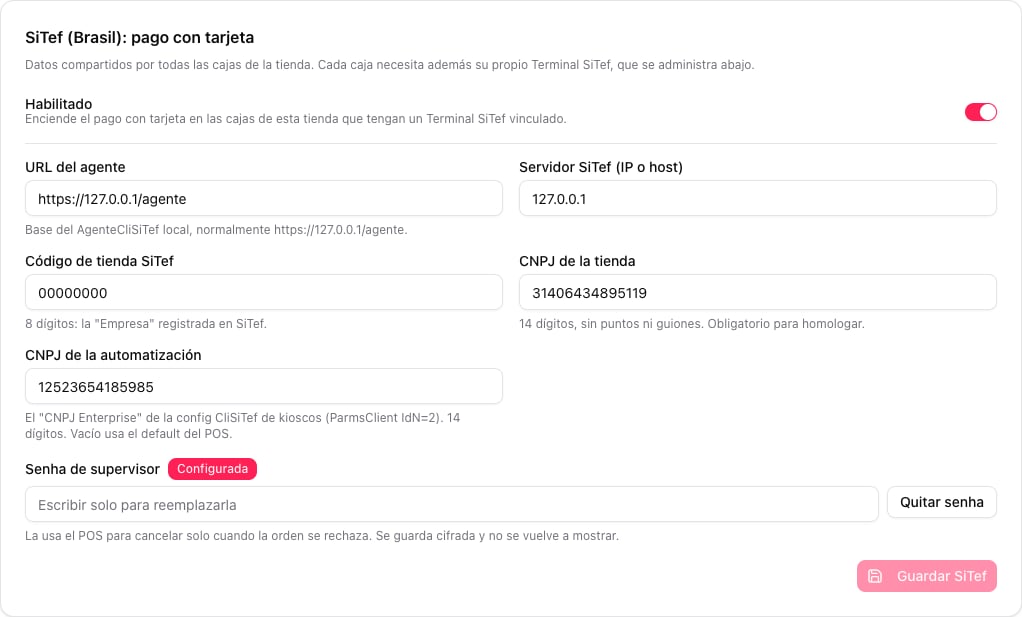
Press Save SiTef. The button turns on only when there are changes; Undo discards them.
2. Create one SiTef terminal per register
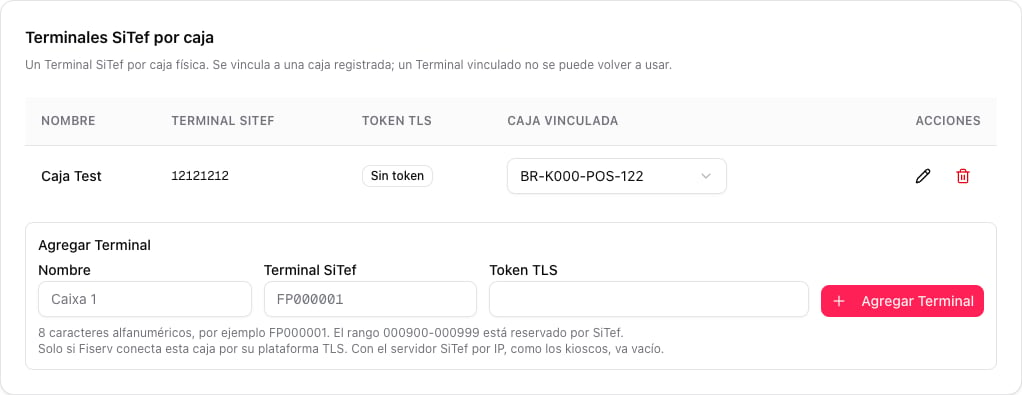
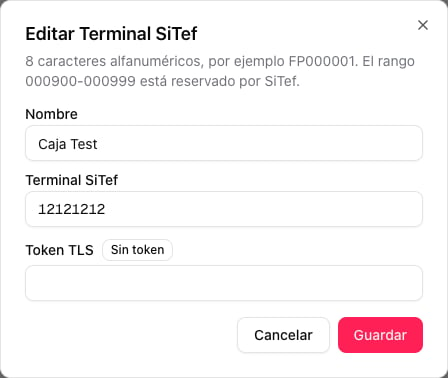
Below is SiTef terminals per register. Under Add terminal fill in:- Name: how you recognize the register, for example
Caixa 1. - SiTef terminal: the 8-character alphanumeric code SiTef assigned, for example
FP000001. The range000900–000999is reserved by SiTef and Fire rejects it. - TLS token: only if Fiserv connects that register through its TLS platform. With the SiTef server by IP, like the kiosks, leave it empty.
3. Link each terminal to its register
In the Linked register column, open the terminal’s selector and choose the register. It saves right away: there is no save button.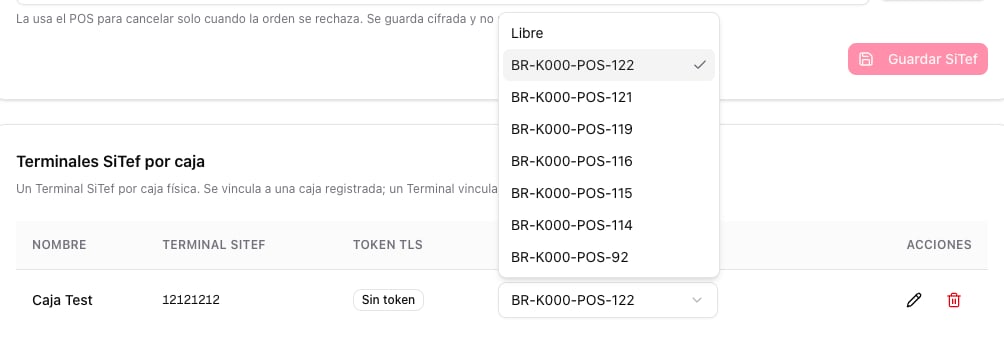
Other ways to link
From the register’s details
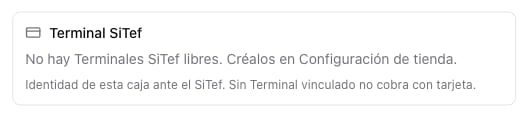
In Fire POS → Terminals, open a register’s ⋮ menu and choose View details. The SiTef terminal section shows which terminal identifies that register to SiTef.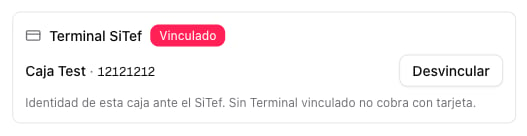
When creating the slot for a new register
In Fire POS → Terminals → Create slot, the SiTef terminal (optional) field lets you choose a free terminal for the register about to be installed. The register is linked to that terminal when the device links with the slot code. The field appears only in stores in Brazil and only if there are free terminals.Edit or delete a terminal
In the table’s Actions column:- Edit (pencil) changes the name, the code or the TLS token. The token is never shown again: type it only to replace it, or use Remove token.
- Delete (trash can) removes the terminal. The linked register stops taking card payments until you link another one.
Production and test environment
The data in the SiTef card and in each terminal change depending on where the register takes payments. Each Fire environment has its own setup: what you enter in the test backoffice does not carry over to production.In production
In production the register connects to the operation’s SiTef server by its IP, just like the store’s kiosks. Fiserv provides three pieces of data: the SiTef IP, the store code and one terminal number per register.1
Ask Fiserv for the data
The SiTef server IP, the store code (“Empresa”) and one terminal number per register. Each register’s number has to be different from the other registers’ and from the store’s kiosks’.
2
Install the production agent on each register
The
agenteCliSiTef-…-Producao-Win64 package Fiserv provides, instead of the simulator agent. It is installed as a Windows service with the scripts in the helper folder.3
Enter the data in Fire
In step 1, the IP in SiTef server, the SiTef store code, and the real CNPJs and supervisor password. In step 2, one terminal per register with its number in SiTef terminal; the TLS token stays empty. Then link each terminal to its register (step 3).
4
Run a test sale on each register
A small card sale, and its cancellation from Estornar transação com cartão, confirm that the register reaches SiTef with its terminal number.
If Fiserv connects the store through its TLS platform instead of an IP, each register also needs a TLS token, generated in the SiTef Administrative Portal and entered in that register’s terminal. The register registers itself on its first operation and then has to be approved in the Portal. The network has to allow port 443 to
tls-prod.fiservapp.com and postls-prod.fiservapp.com, and the registration is stored on the register’s PC, in C:\CliSiTef\NaoExcluirControleCliSiTef\<Empresa>\<Terminal>.In testing (homologation with the simulator)
In testing the register talks directly to SiTdemo, the SiTef simulator, without TLS:- The agent is the simulator one, and SiTdemo runs on the same network or on the same PC.
- SiTef server holds SiTdemo’s IP:
127.0.0.1if it runs on the same PC. - Store code
00000000and one test terminal code per register. - TLS token empty: SiTdemo does not use TLS.
- Enabled on only in the test store.
What changes between testing and production
When a register takes card payments
Example
Laboratorio Brasil has 7 registered registers and a single SiTef terminal:
For BR-K000-POS-121 to take card payments, you need to create a second terminal with its own code and link it to that register. Reusing
12121212 is not allowed.
Costly mistakes
Glossary
Frequently asked questions
Do I need to restart the POS after changing the setup?
Do I need to restart the POS after changing the setup?
No. Fire notifies the store’s registers and the next card sale already uses the new data.
Is the TLS token used only once?
Is the TLS token used only once?
Yes, and only if the store connects through Fiserv’s TLS platform. The register registers with it the first time and stays registered on that PC. If you change or reinstall the PC, ask Fiserv for a new token and enter it in that register’s terminal.
Can I use the same terminal on two registers?
Can I use the same terminal on two registers?
No. Fire rejects it, because SiTef would mix the pending transactions and cancellations of both registers. Each register needs its own code.
When charging by card the register shows «Processador de pagamento indisponível»
When charging by card the register shows «Processador de pagamento indisponível»
That register is missing its SiTef setup: it has no linked terminal, or the store’s SiTef is off or not saved. The message mentions the agent, but in this case the cause is in Fire: check steps 1 to 3.
I don't see the SiTef cards in Store config
I don't see the SiTef cards in Store config
The store selected in the header is not in Brazil. The SiTef cards only appear in stores in Brazil.
The SiTef terminal field does not appear in Create slot
The SiTef terminal field does not appear in Create slot
There are no free terminals in the store. Create one in Store config and open Create slot again.
What happens to the terminal if I delete the register?
What happens to the terminal if I delete the register?
It becomes free and you can link it to another register.