

The minimum you need to know
- The sale is recorded when you tap Finish sale, not before.
- Each charge is listed in Charges on this account and can be voided before you finish.
- For cash, tap the bills the customer gave you: the POS works out the change.
Prerequisites
- The register is open. See Open the register.
1. Build the order
At the top, choose the service type: Dine in or Takeaway. Categories are on the left and products in the center: tap a product to add it to the order.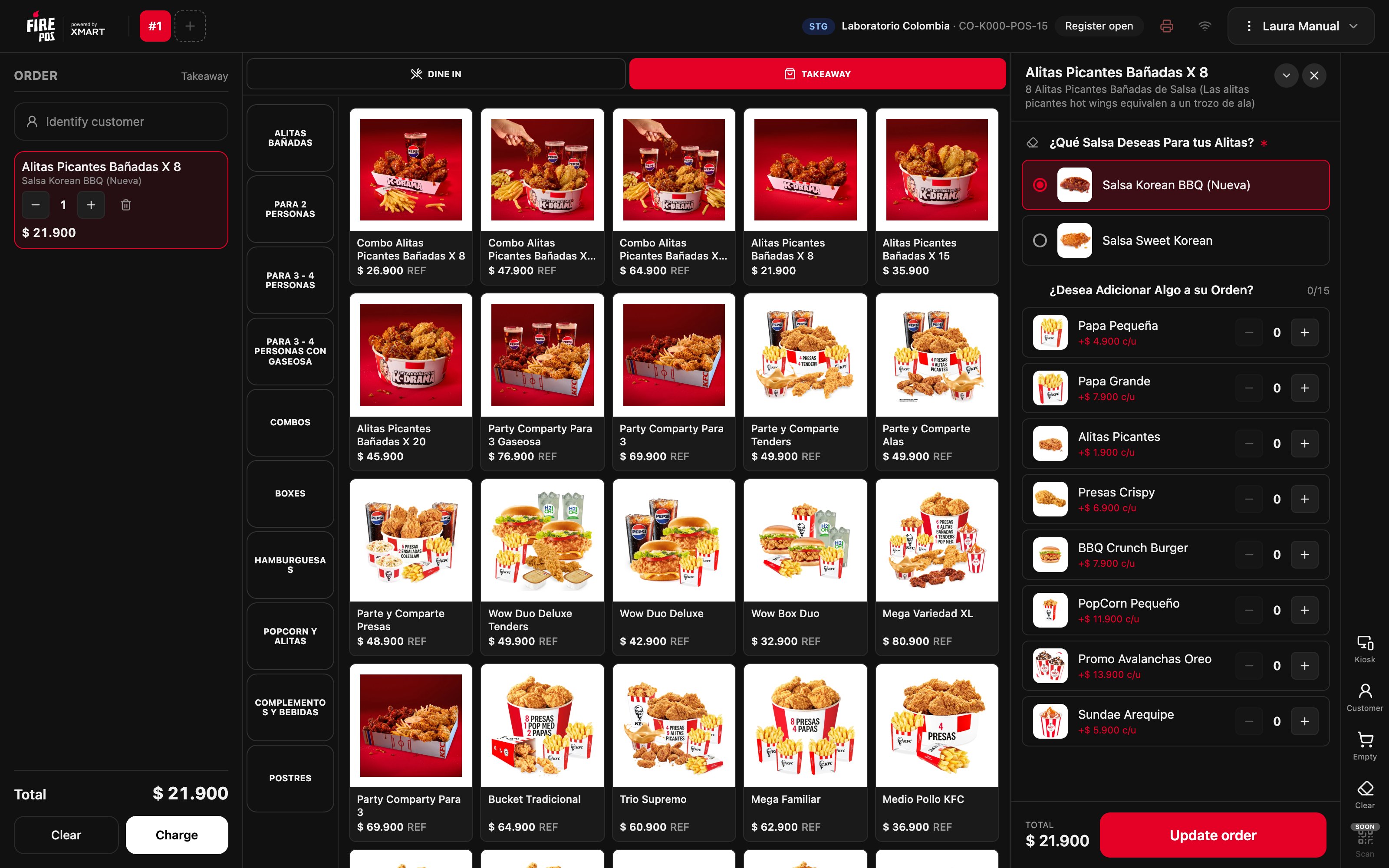
2. Take several orders at once
The + button at the top opens another order in a new tab. Use it to take the next customer’s order while the previous one looks for a way to pay. Tap a tab to go back to that order.
3. Open the charge screen
Tap Charge. The charge screen shows the Remaining to charge and the store’s payment methods.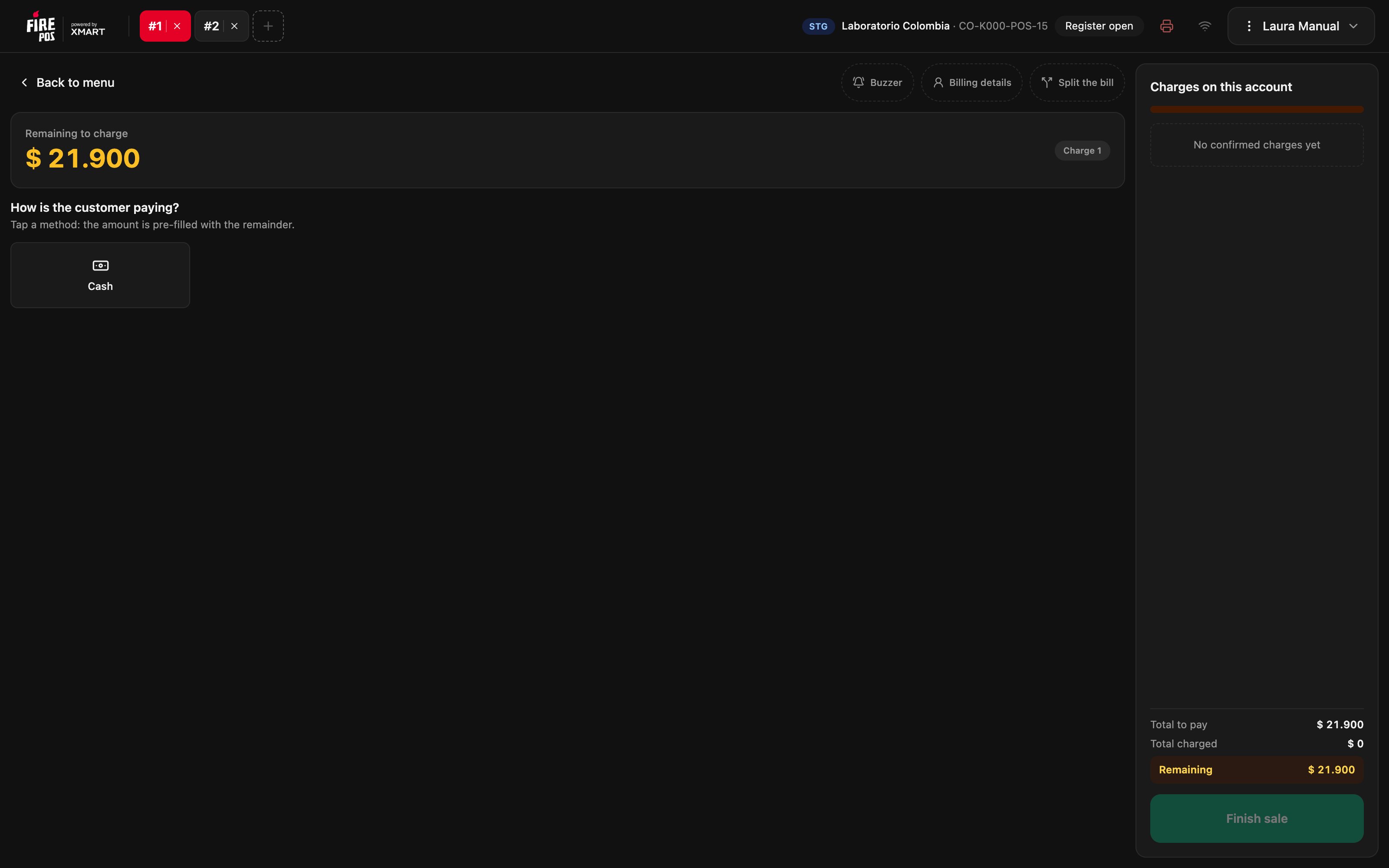
4. Enter the buzzer
If the store hands out buzzers, tap Buzzer, type the number of the one you gave the customer, and tap Save. If the store requires it, you cannot finish the sale without it.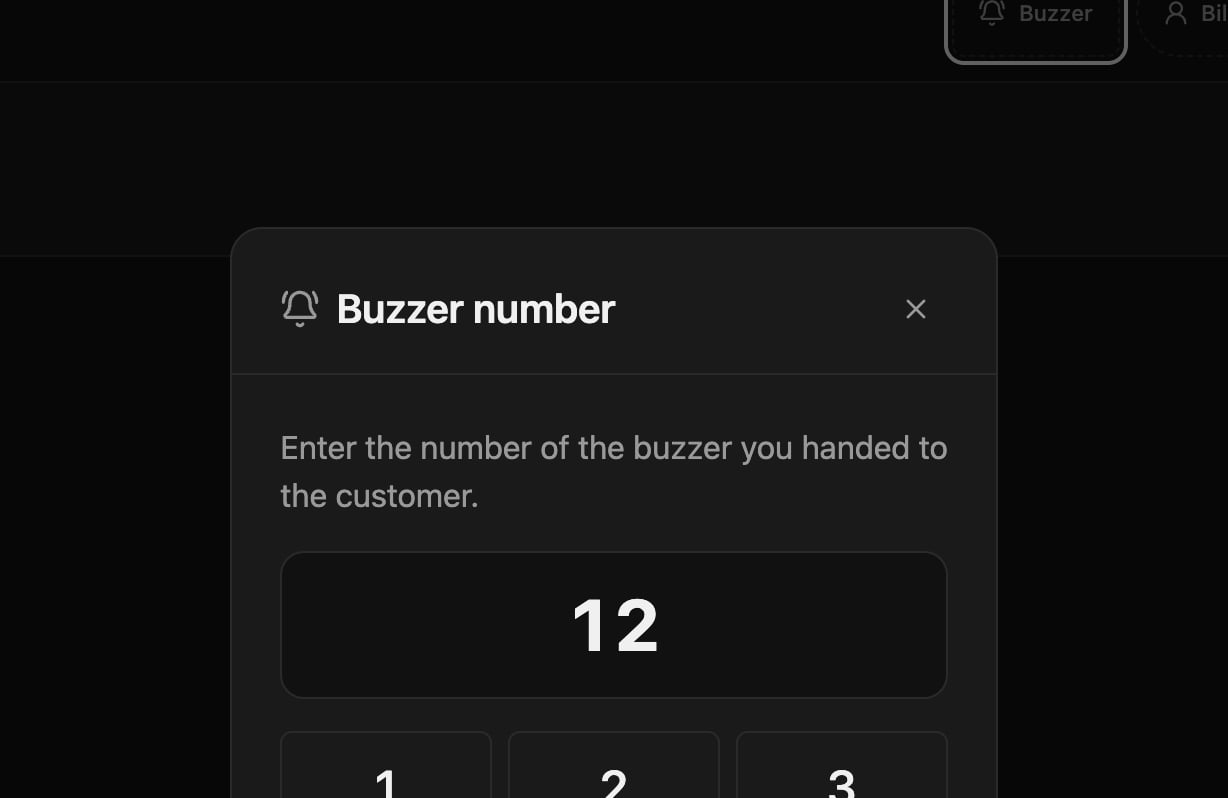
5. Charge in cash
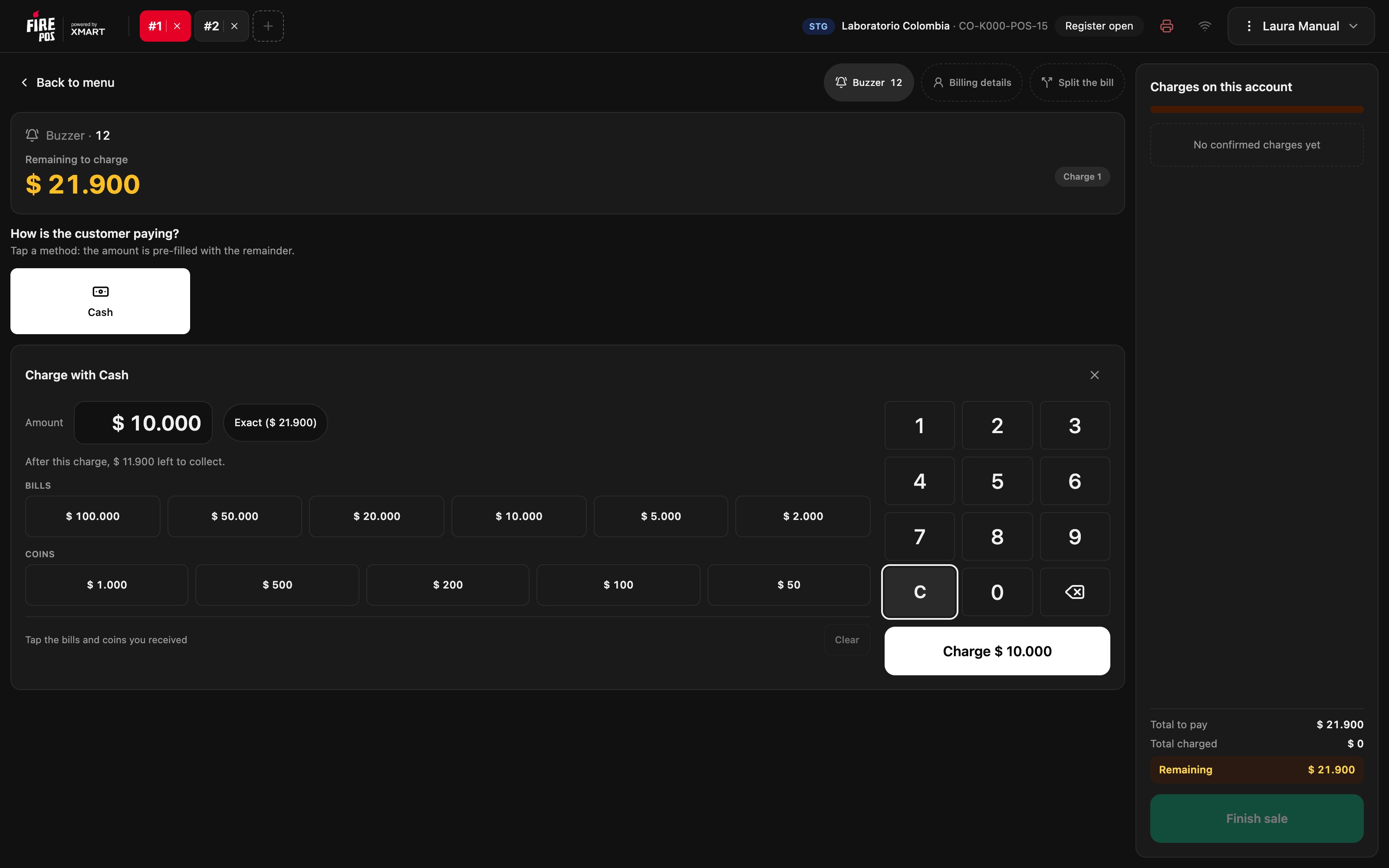
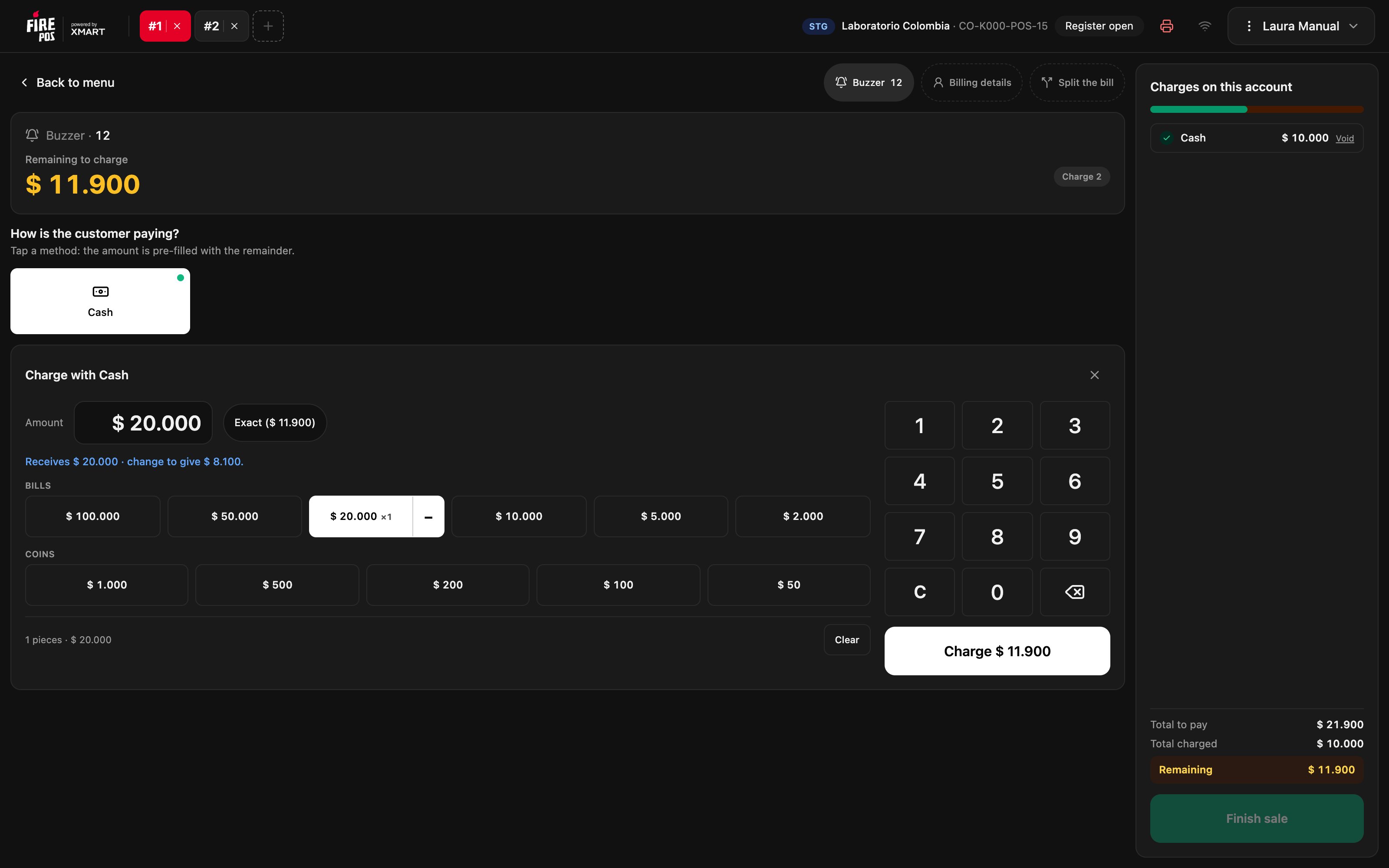
Tap Cash. The drawer opens and Charge with Cash appears, with the amount already set to the remaining balance. There are two ways to charge:- All at once: tap the bills and coins the customer gave you. The POS shows how much you are receiving and how much change to give.
- In parts: use C to clear the amount and type how much you are charging in this payment. The POS tells you how much will be left to charge.
6. Finish the sale
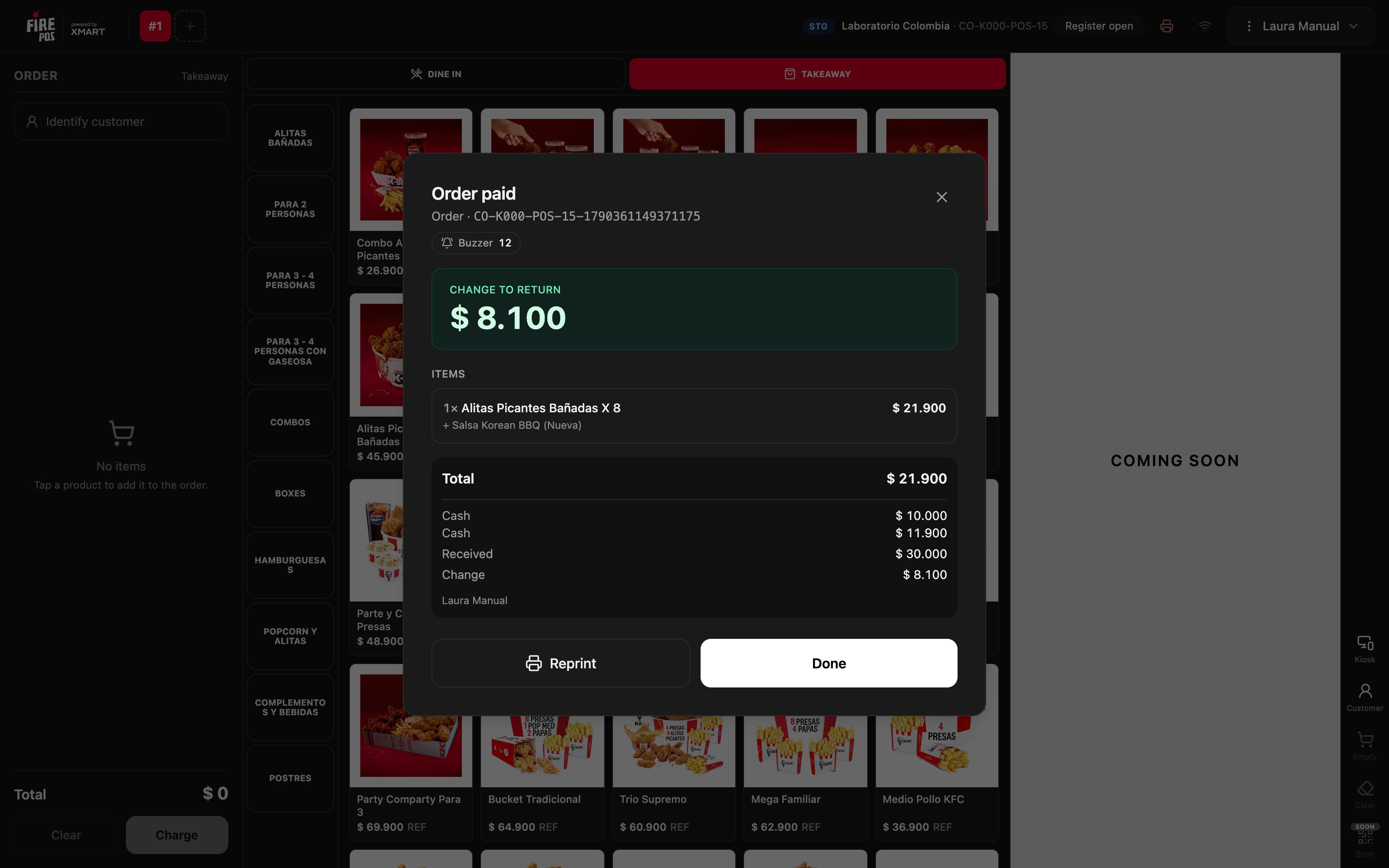
When there is nothing left to charge, Account covered appears at the top and Finish sale becomes active. Check the charges and the Change given.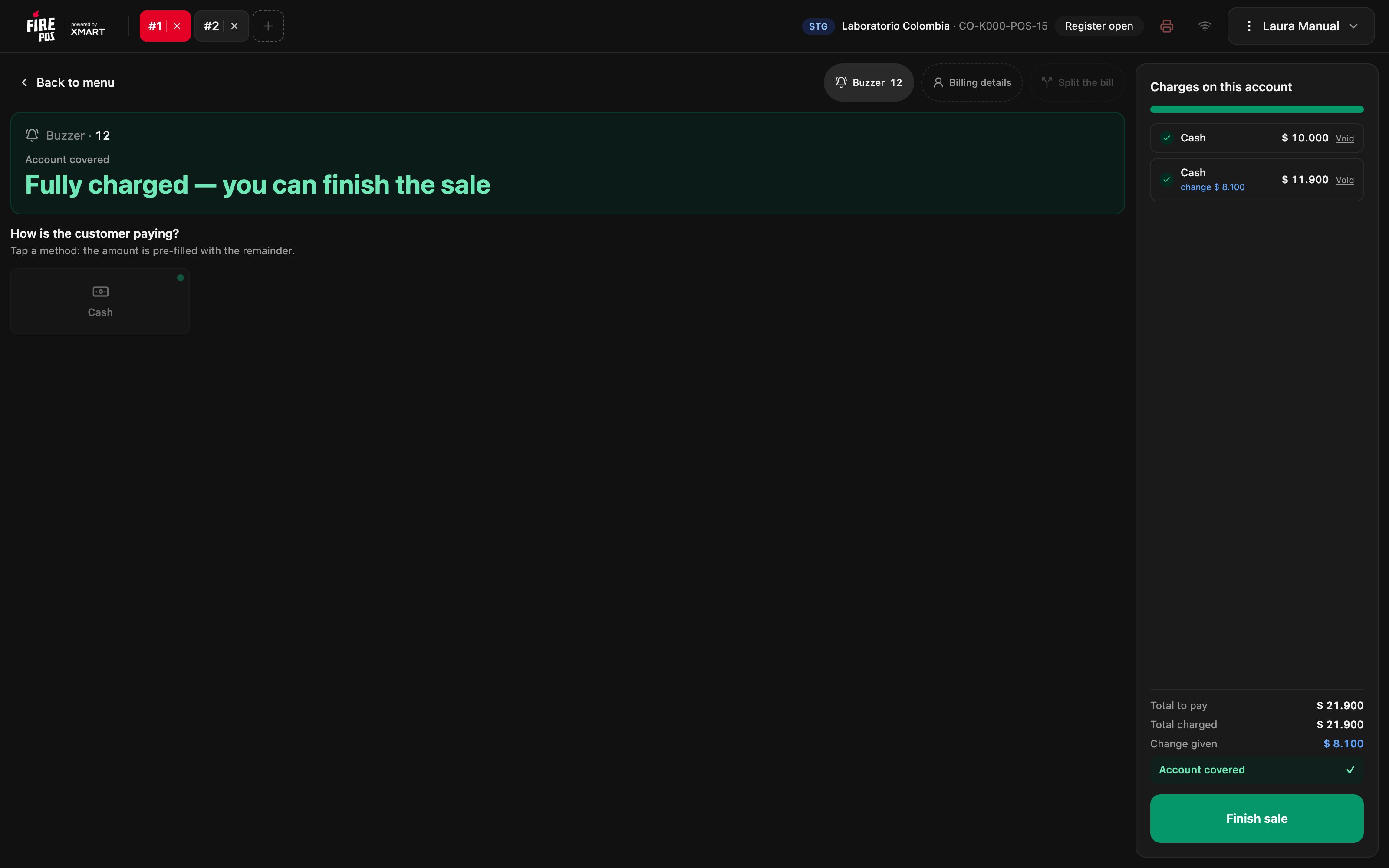
Void a charge
If you entered the wrong amount or the customer wants to pay another way, void the charge before finishing: tap Void on the charge and confirm with Void charge. The amount goes back to the remaining balance and the charge is recorded as voided.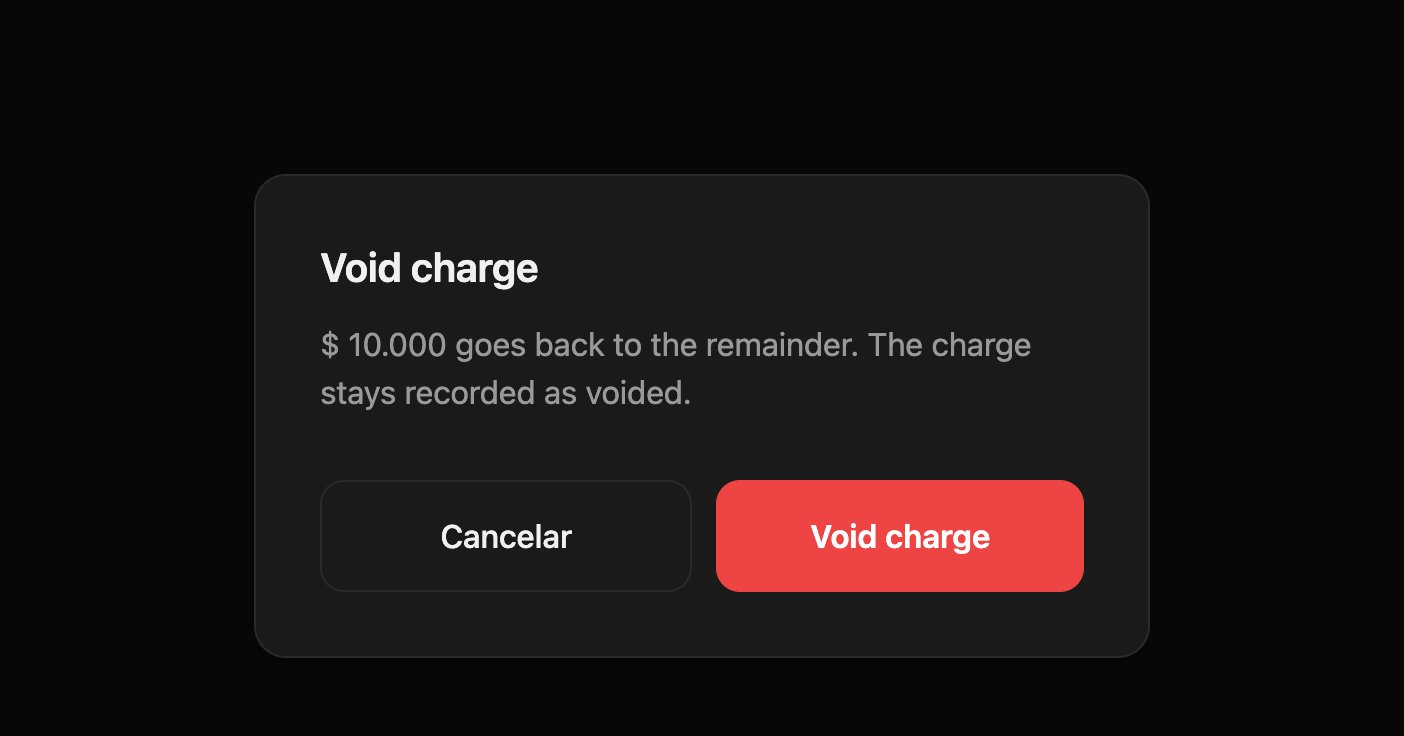
Recipes
The customer pays cash with a large bill
The customer pays cash with a large bill
- Tap Cash.
- Tap the bill the customer gave you.
- Check the change the POS shows and tap Charge.
- Tap Finish sale and hand over the Change to return.
The customer pays part now and the rest later
The customer pays part now and the rest later
- Tap Cash, clear the amount with C and type the first part.
- Tap Charge.
- Tap the method again for the rest: the amount already comes with what is missing.
- When Account covered appears, tap Finish sale.
The customer changes method after a charge
The customer changes method after a charge
- Tap Void on the charge and confirm.
- If it was cash, give the money back.
- Charge with the new method.
Take an order while another one waits to pay
Take an order while another one waits to pay
- Tap + to open another order.
- Take the new order.
- Tap the first order’s tab to charge it when the customer is ready.
Mistakes that cost money
Frequently asked questions
The payment method I need does not appear
The payment method I need does not appear
The screen shows only the methods enabled for the store. If one is missing, ask the manager to check it.
The receipt did not print
The receipt did not print
Check that the Fire Agent is open and the printer is set up, and tap Reprint in Order paid.
Finish sale does not become active
Finish sale does not become active
There is still something left to charge, or the store requires a buzzer and you did not enter it.