

The minimum you need to know
- The manager decides the amount when generating the code. The cashier does not type it: they confirm it.
- The code is tied to one open register: it only works on that register and for that amount.
- Confirming opens the drawer and prints a slip to sign. The close subtracts the withdrawal from what there should be in the register.
Prerequisites
- The register open. See Open the register.
- A manager with access to Fire POS → Authorization codes in the backoffice. See Authorization codes.
In the backoffice: authorize the withdrawal
The manager does this.1. Choose the register and the amount
Open Fire POS → Authorization codes and, under Purpose, choose Partial withdrawal. Fill in:- Open register: the register the cash comes out of. If only one is open, it is already selected. The POS shows which one it is in the For the manager box.
- Amount to withdraw: no thousands separator. Below it you see the amount as the cashier will see it, and it cannot exceed the Cash in register.
- Category: what the cash is for. See Categories.
- Reason: optional, except with the Other category.
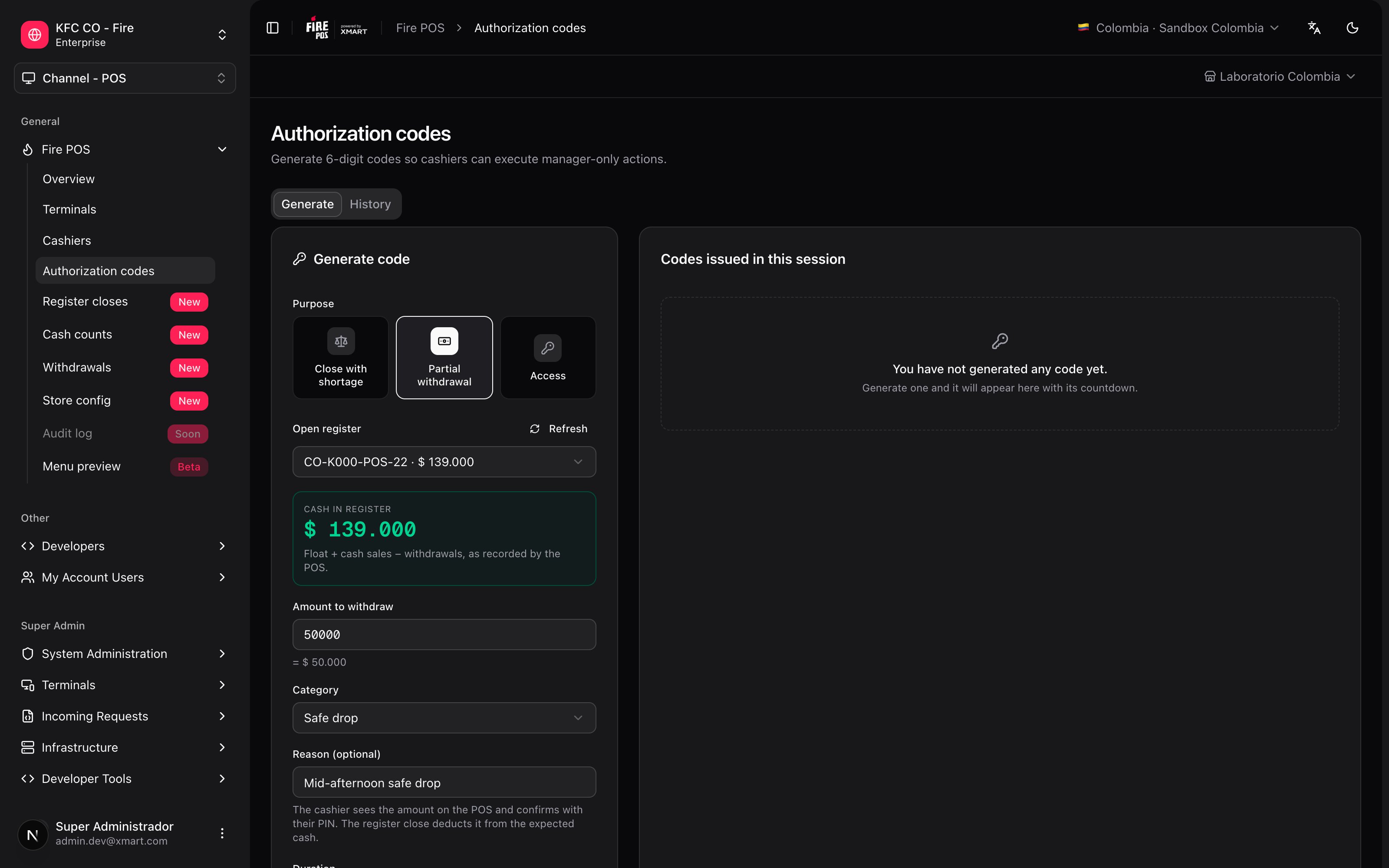
2. Generate the code and read it to the cashier
Choose the duration and tap Generate code. The code appears in Codes issued in this session with the authorized amount. Read the 6 digits to the cashier.
In the POS: make the withdrawal
The cashier does this.1. Open the withdrawal and enter your cashier PIN
Tap your name at the top right to open Settings and choose Withdraw cash. The POS asks for your cashier PIN, the same one you use to sign in to the POS. The For the manager box shows the store and the open register. That is what the manager has to choose in the backoffice so the code works on this register.
2. Enter the manager’s code
Enter the 6 digits the manager read to you.
3. Check the amount and confirm
The POS shows the Authorized amount, the category and the reason. If it is what you agreed, tap Confirm withdrawal. The withdrawal is recorded and the drawer opens.
4. Take the cash out and declare how much you took
Take the amount out of the drawer and declare it in one of two ways:- Amount only: type it on the numeric keypad.
- Bill by bill: tap each bill and coin you take out. The detail goes on the slip.

5. Sign the slip
The slip prints and stays on screen, exactly as it came out. The cashier and the manager sign it. If it did not print, tap Print again. Tap Done to go back to selling.
How it affects the register close
- Expected = opening float + cash sales − withdrawals. The close already subtracts each withdrawal.
- The close summary and its slip show the total of Withdrawals.
- Fire’s cash reconciliation receives each withdrawal with its amount, its category, the time and who authorized it.
Example
A register opens with a 600.000 in cash. In the afternoon the manager takes 400.000 in the drawer.
With the withdrawal recorded, the close balances and the signed slip explains where the $ 300.000 went. Without recording it, the cashier is left with a shortage for money the manager took.
Review withdrawals in the backoffice
In the backoffice, Fire POS → Withdrawals lists the withdrawals of the store selected at the top right: cashier, store, terminal, amount, category, reason, who authorized and date.
Categories
Recipes
Take cash to the safe in the middle of the shift
Take cash to the safe in the middle of the shift
- The cashier opens Settings → Withdraw cash and tells you the register in the For the manager box.
- In Fire POS → Authorization codes, choose Partial withdrawal, that register, the amount and Safe drop.
- Generate the code and read it to the cashier.
- The cashier confirms, takes the cash out and declares it.
- Sign the slip and keep the cash together with the slip.
Pay a supplier with cash from the register
Pay a supplier with cash from the register
- Generate the code with the Paid out category and, in the reason, who is being paid.
- The cashier makes the withdrawal and hands the cash to the supplier.
- File the signed slip together with the supplier’s invoice.
Hand out tips in cash
Hand out tips in cash
- Generate the code with the Tip out category and the amount to hand out.
- The cashier makes the withdrawal and declares the cash bill by bill.
- Hand out the cash and file the signed slip.
Withdraw several times during the shift
Withdraw several times during the shift
- Generate one code per withdrawal, with its amount.
- The cashier makes each withdrawal separately and signs each slip.
- At the close, the summary shows the total of Withdrawals and the expected amount already deducts them all.
- Check the detail in Fire POS → Withdrawals.
Mistakes that cost money
Glossary
Frequently asked questions
It says «That code is for another register»
It says «That code is for another register»
The manager chose another register when generating the code. Ask for a new one for the register in the For the manager box.
It says «The register doesn't have that much cash»
It says «The register doesn't have that much cash»
The authorized amount is higher than the cash in the register. The code was not used: the manager can generate another one for less.
I do not know which PIN to enter
I do not know which PIN to enter
It is your cashier PIN, the same one you use to sign in to the POS. The step title includes your name.
The slip did not print
The slip did not print
The withdrawal is already recorded. Check the printer and tap Print again: the slip is still on screen.
The slip does not have the bill detail
The slip does not have the bill detail
It only appears if you declared the cash bill by bill. If you typed the amount, the slip comes out without the detail.
Can the cashier change the amount?
Can the cashier change the amount?
No. The manager decides it when generating the code. If a different amount is needed, generate another code.
Can I make several withdrawals in the same shift?
Can I make several withdrawals in the same shift?
Yes. Each one needs its own code and comes with its own slip.